
How to Do an SEO Audit Yourself: A Step-by-Step Checklist

An SEO audit is a structured check of whether search engines can find, understand and trust your website. You can run a useful one yourself in an afternoon with free tools, and this checklist shows you how, step by step.
Most small business websites lose enquiries for reasons that are easy to spot once you know where to look: pages that were never indexed, a title that says nothing, a slow page, a phone number that is different on two pages. None of these needs an expensive tool or a developer to find.
This guide covers eight steps, from indexing to content to technical health. It ends with a real audit of my own website, including the problems I found and how I fixed them. By the end you will have a prioritised list of fixes, not just a long list of errors.
What is an SEO audit?
An SEO audit checks how well your website is set up to be found in search results and to turn visitors into enquiries. It looks at four areas: whether Google can crawl and index your pages, whether the site is technically healthy, whether each page clearly answers what people search for, and whether other sites and platforms trust you.
What it is not: a ranking guarantee, a one-time job, or a score from a tool. A report that says "92/100" can still hide an important page that Google never indexed. An audit is only useful if it ends with a short list of things to fix, in order.
If you want the bigger picture of why your website matters for every marketing channel, read Why Your Website Matters in Digital Marketing.
Tools you will need (all free)
You do not need a paid subscription for a solid self-audit. These cover almost everything in the checklist.
| Tool | What you use it for |
|---|---|
| Google Search Console | Which pages are indexed, which searches show your site, errors, links |
| Google Analytics (GA4) | Which pages get visits and which lead to enquiries |
| PageSpeed Insights | Mobile speed and Core Web Vitals for any URL |
| Screaming Frog SEO Spider (free version) | Crawls up to 500 URLs and lists titles, H1s, broken links, redirects, canonicals |
| Rich Results Test and Schema Markup Validator | Checks structured data |
| A Google search for site:yourdomain.com | A quick count of pages Google has indexed |
| Browser developer tools (optional) | Shows failed file requests and what is slowing a page down |
Before you start, make sure your site is verified in Search Console. Without it you cannot do Step 1 properly.
The 8-step SEO audit checklist
Work through the steps in order. Each one follows the same pattern: what to check, where to find it, what good looks like, and the usual fix.
Step 1: Check indexing and crawling
What to check: Whether your important pages are in Google's index, and whether anything is blocking them.
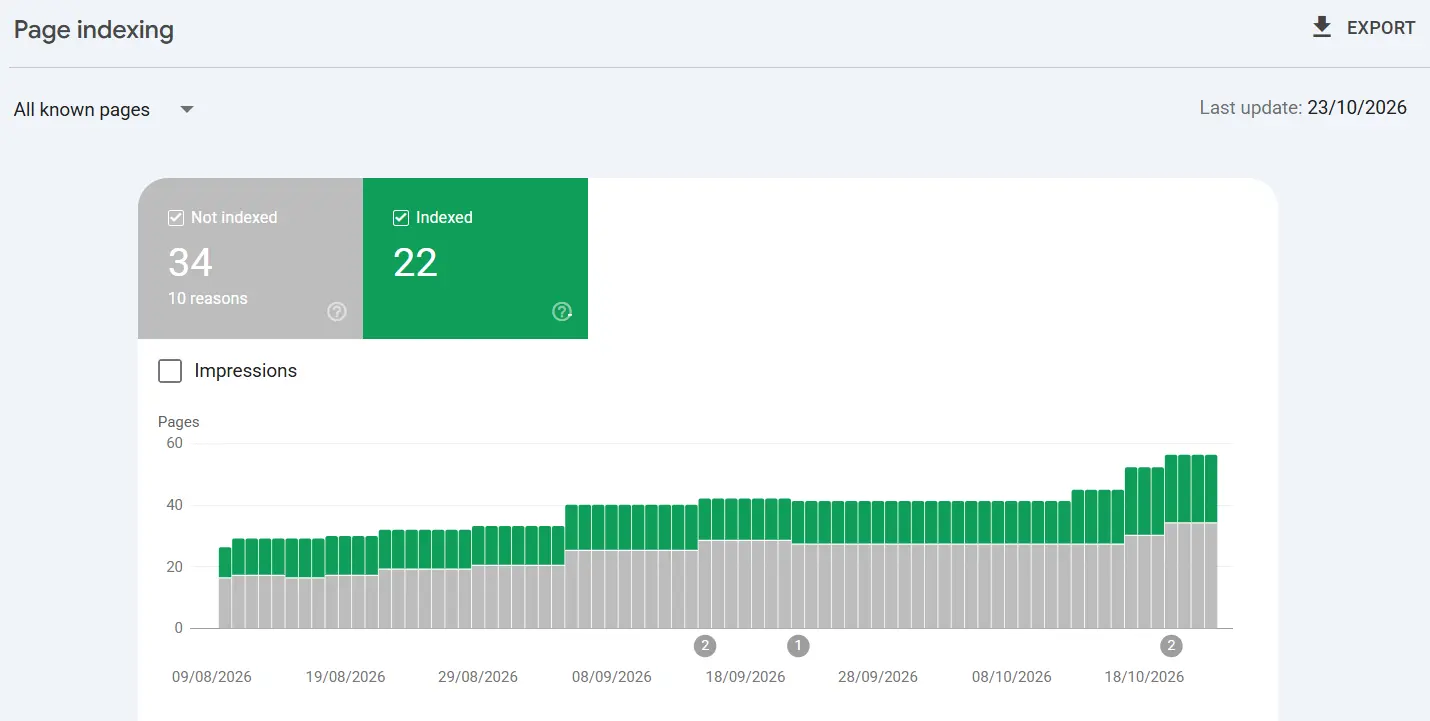
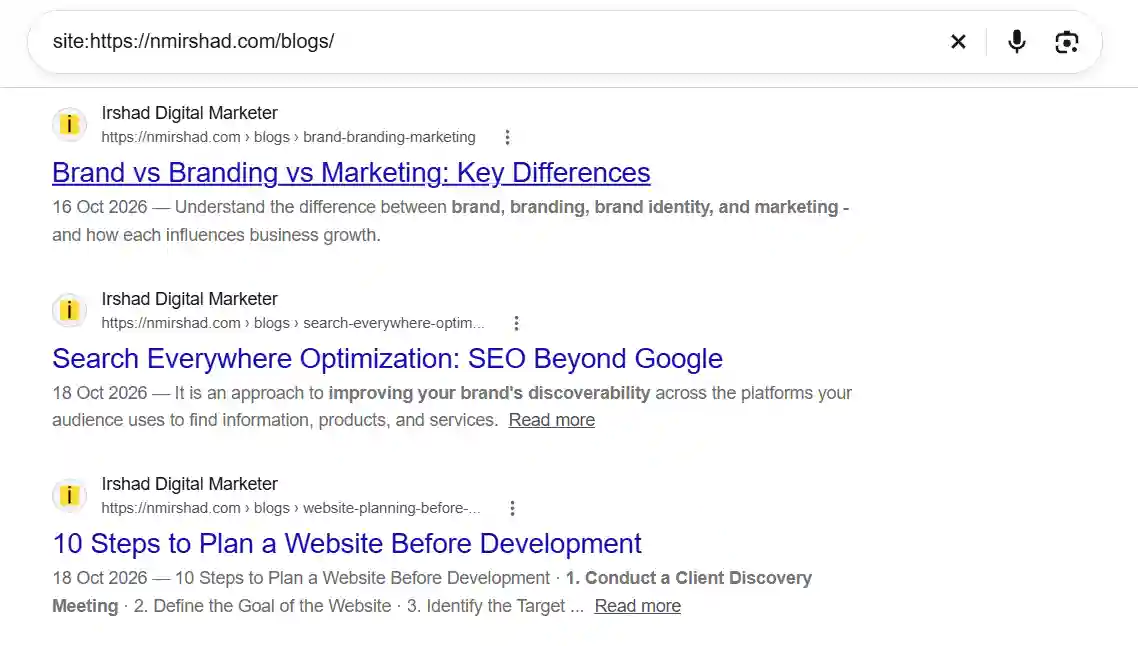
Where to find it: Type site:yourdomain.com into Google for a rough count. Then open Search Console, go to Indexing, then Pages, to see exact numbers and the reasons pages are left out. Open yourdomain.com/robots.txt and yourdomain.com/sitemap.xml in your browser, and check the sitemap is submitted under Sitemaps in Search Console.
What good looks like: Every page you want to rank is indexed. robots.txt does not block important folders. The sitemap lists only live pages that return a normal 200 response.
Common fix: Remove an accidental "noindex" tag, take redirected or deleted URLs out of the sitemap, and use URL Inspection, then Request indexing, for new pages. On a brand-new site, give Google a few weeks before worrying.
Step 2: Check technical basics
What to check: HTTPS on every page, how the site looks on a phone, page speed, broken links and images, redirects, canonical tags, and duplicate versions of the same page (with and without www, with and without a trailing slash).
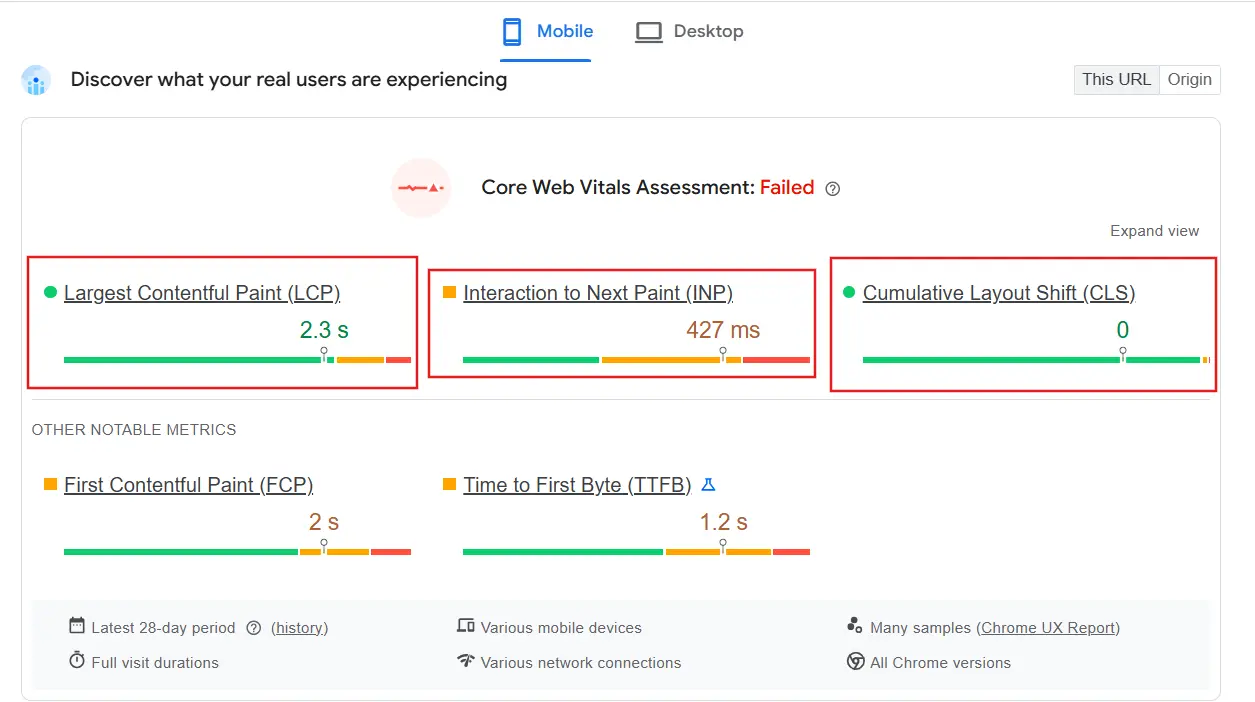
Where to find it: Run your key pages through PageSpeed Insights and read the mobile result and the Core Web Vitals. Crawl the site with Screaming Frog and filter by response code (anything that is not 200), canonicals and redirects. Then open a few pages on a real phone.
What good looks like: Every URL returns 200, each page has one canonical address, nothing returns 404, and the mobile Core Web Vitals sit in the "good" range: Largest Contentful Paint at or under 2.5 seconds, Interaction to Next Paint at or under 200 milliseconds, Cumulative Layout Shift at or under 0.1.
Common fix: Compress and convert images to WebP, remove or delay scripts you do not need, correct file paths, and 301-redirect duplicate versions to one.
Step 3: Audit on-page elements
What to check: For each important page, the title tag, meta description, a single H1, logical H2 headings, a short readable URL, image alt text, and internal links.
Where to find it: The Screaming Frog tabs for Page Titles, Meta Description, H1 and Images, or view the page source. Search Console, then Performance, shows which searches already bring each page impressions.
What good looks like: A unique title of about 50 to 60 characters with the main keyword near the front, a meta description of about 120 to 155 characters, an H1 that plainly says what the page is, alt text that describes the image (not "Project 1"), and link text like "SEO services" rather than "click here".
Common fix: Rewrite weak titles, replace slogan-style H1s with descriptive ones, and add links between related pages.
Step 4: Review content quality
What to check: Whether each page answers what people searching for it want to know, whether any pages are thin, whether two pages compete for the same keyword, and whether there is proof you know the subject: a named author, real examples, case studies, testimonials with names.
Where to find it: Search your target keyword and compare the top results with your page. In Search Console, check which queries each page appears for.
What good looks like: The page answers the main question in its first few sentences, adds something original, and is the only page on your site for that topic.
Common fix: Merge or redirect overlapping pages, expand thin ones, and add real proof such as results, screenshots and named testimonials.
Step 5: Check structured data and AI readiness
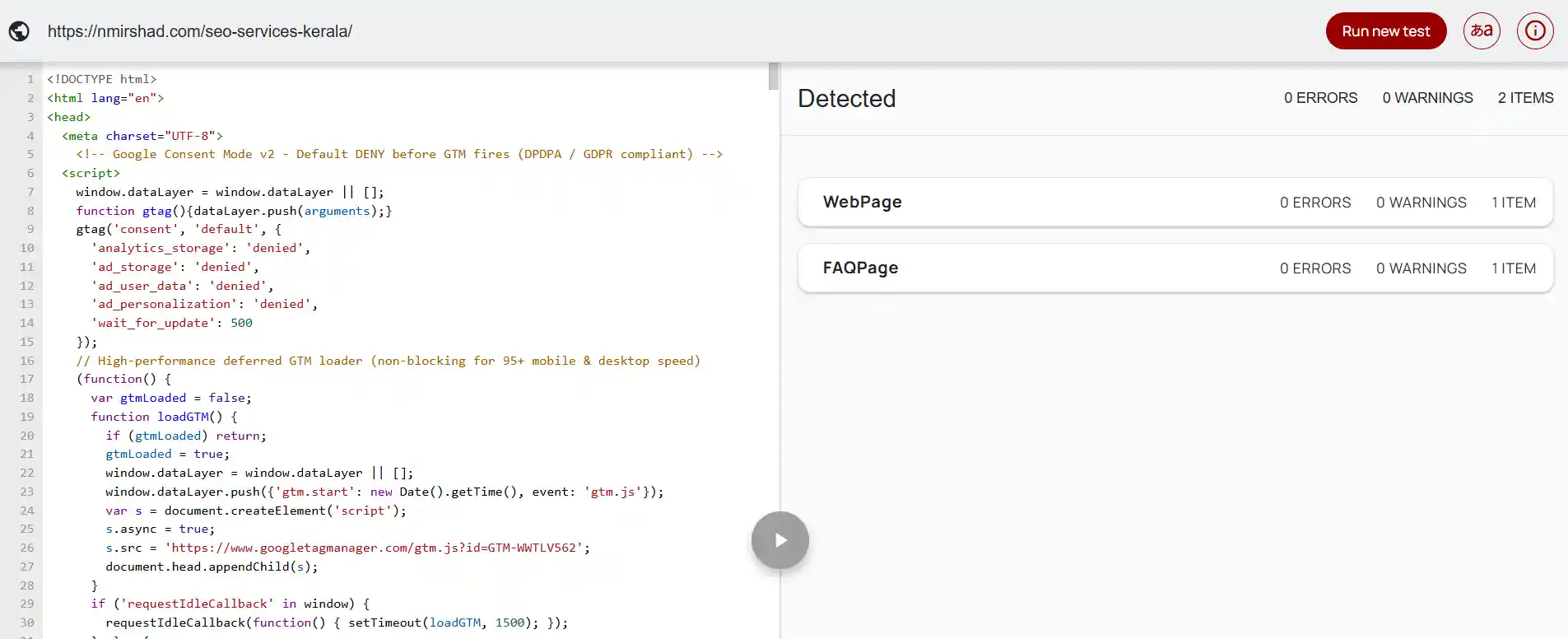
What to check: Whether each page carries schema markup that matches what is visible on it (BlogPosting for articles, BreadcrumbList, Person or Organization for you, Service for service pages), and whether your content gives short, direct answers that search and AI tools can quote.
Where to find it: Paste the page URL into the Rich Results Test and the Schema Markup Validator.
What good looks like: Valid markup with no errors, matching the page content, plus answer-first writing: the definition or answer sits in the first two or three sentences, with questions as headings.
Common fix: Add JSON-LD markup and rewrite openings so they answer the question straight away. Note that Google now shows FAQ rich results for only a limited set of sites, but FAQ-style sections still help readers and are easy for AI tools to pull from.
Step 6: Check off-page signals
What to check: Which sites link to you, and whether your name, description and profiles look the same everywhere.
Where to find it: Search Console, then Links, shows who links to you. Search your brand name in quotes and look at what comes up.
What good looks like: Links from real, relevant sites, and one consistent brand name and description across your website, LinkedIn, Instagram, YouTube and Facebook, each linking back to the site.
Common fix: Standardise your brand name and bio on every profile, link to the website from each, and earn links by publishing useful, original work. Do not buy links.
Step 7: Prioritise the fixes
An audit that ends with 60 problems helps no one. Sort every finding by how much it matters and how hard it is to fix.
| Bucket | What goes in it | Examples |
|---|---|---|
| Fix this week | High impact, low effort | Wrong contact details, missing or weak titles and H1s, broken links and images, accidental noindex |
| Fix this month | High impact, more effort | Page speed work, rewriting thin pages, adding schema, fixing duplicate URLs |
| Later | Low impact | Minor alt text, tidy-ups, nice-to-have extras |
Step 8: Re-check on a schedule
An audit is a snapshot. Look at Search Console for new errors and your top pages once a month (about 15 minutes), run this checklist in a quick form every quarter, and do a full audit every 6 to 12 months or after any redesign or migration. After a big change, check indexing within a week or two.
A real example: auditing my own website
I ran this exact checklist on nmirshad.com, my own site. It turned up several problems. Here are three of them, how I found each, why it matters and what I did about it.
Finding 1: Two different WhatsApp numbers (Steps 3 and 4)
How I found it: I crawled the site with Screaming Frog and searched the extracted links for wa.me. The homepage button pointed to one number, while the About, Contact and service pages pointed to a different one.
Why it matters: Enquiries from the homepage could have gone to the wrong place. Mismatched contact details also confuse visitors and make a business look less reliable, and they are exactly the kind of inconsistency search engines compare when deciding whether a site is trustworthy.
What I did: I confirmed which number was correct, then changed every button, link and footer entry to use it, and checked the structured data used the same one.
The lesson: Contact details live in many places (header, footer, buttons, forms, schema). Search your whole site for them, not just one page.
Finding 2: Broken URL paths on some pages (Step 2)
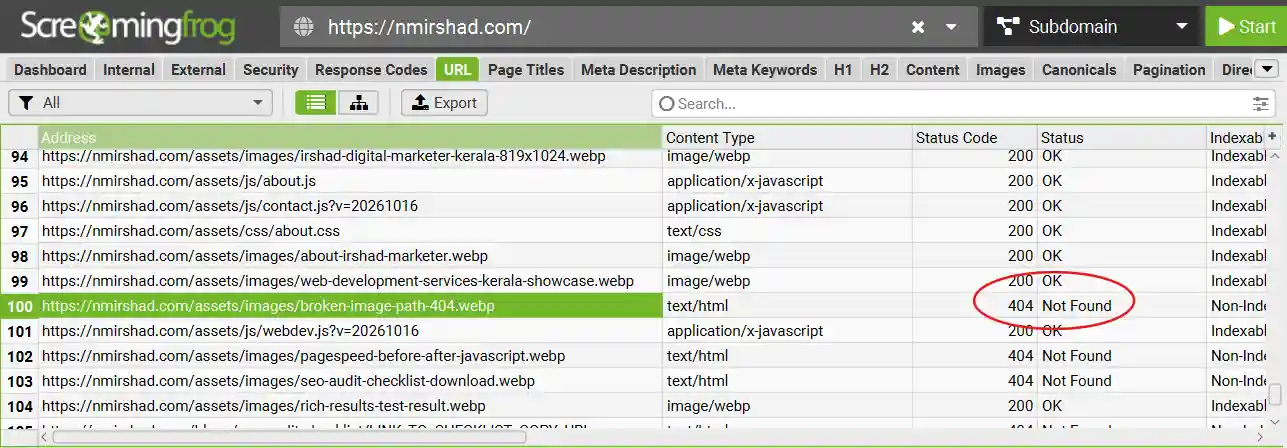
How I found it: The crawl showed client errors (4xx) for image files on some pages. Opening one of those pages and checking the Network tab in browser developer tools showed the same thing: the logo was being requested from /blogs/assets/images/... instead of /assets/images/..., so it returned a 404.
Why it matters: The cause was a relative file path. Written as assets/images/logo.webp, the browser adds it to the folder of the current page, so it works on a page at the top level but breaks on pages inside /blogs/. Broken images make a site look unfinished, and the same mistake can break CSS and JavaScript files too. It also wastes Google's crawl time on addresses that do not exist.
What I did: I changed those paths to start with a slash (/assets/images/...), so they always point to the same place from any page, then re-crawled to confirm that the 4xx errors were gone.
The lesson: Use root-relative or full URLs for site-wide assets, and always re-crawl after fixing.
Finding 3: Slow loading caused by JavaScript (Step 2)
How I found it: PageSpeed Insights on the mobile tab showed a mobile performance score of 52 and a Largest Contentful Paint of 6.2 s. The diagnostics pointed to JavaScript as the main cause, in the "reduce unused JavaScript", "eliminate render-blocking resources" and "minimize main-thread work" items. The report flagged Google Tag Manager, analytics scripts, custom JS code, and legacy JavaScript as the main contributors, alongside secondary issues with image delivery and font loading.
Why it matters: On a phone, every script has to be downloaded, parsed and run before the page feels ready. Heavy JavaScript delays what the visitor sees and how fast the page responds to taps, which hurts both the visitor experience and the Core Web Vitals Google measures.
What I did: Tag Manager & Analytics: Delayed loading of Google Tag Manager and analytics scripts until after the window load event or first user interaction to free up the main thread.
JavaScript Execution: Added defer to non-critical scripts, removed unused code, updated or removed legacy JavaScript polyfills, and minified remaining JS files.
Fonts & Images: Optimized image delivery through compression and modern formats (such as WebP), and improved font loading by removing unwanted Google Fonts, preloading essential font files, and applying font-display: swap to eliminate render-blocking behavior. Then I tested again on the same URL.
The lesson: Test on mobile, change one thing at a time, and test again. A speed score only matters if you record it before and after.
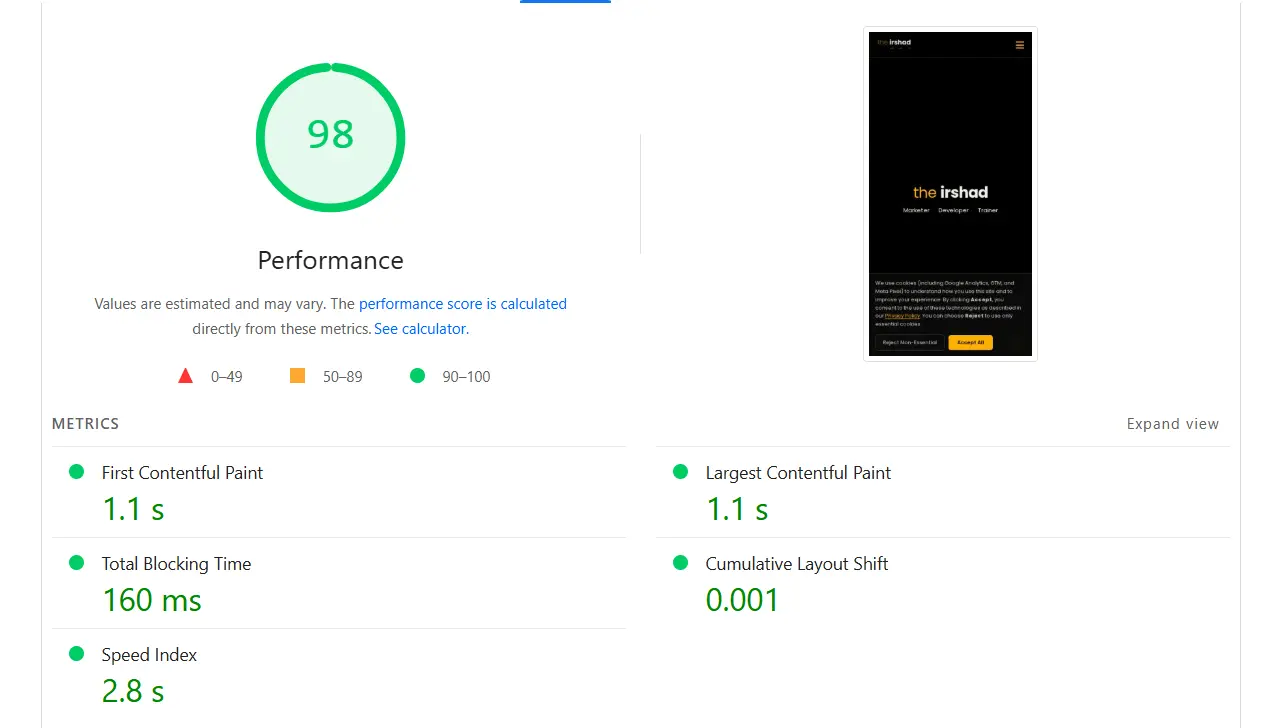
Before and after
| Measure | Before | After |
|---|---|---|
| Different WhatsApp numbers found | 2 | 0 |
| Broken image or file requests (4xx) | 24 | 2 |
| Mobile performance score (PageSpeed Insights) | 52 | 98 |
| Largest Contentful Paint (mobile) | 6.2 s | 1.1 s |
| Total Blocking Time (mobile) | 9050 ms | 160 ms |
Common mistakes when auditing your own site
- Fixing everything at once. Sort by impact and effort (Step 7) and do the small, important fixes first.
- Chasing a tool's score. A high score does not mean your pages are indexed, clear or trusted. Use scores as hints, not goals.
- Not recording a baseline. Without "before" numbers you cannot show that a fix worked. Screenshot first, then change.
- Skipping Search Console. Third-party tools guess; Search Console shows what Google actually sees.
- Auditing once and stopping. Sites change every time you add a page, plugin or script. Put the re-check on your calendar.
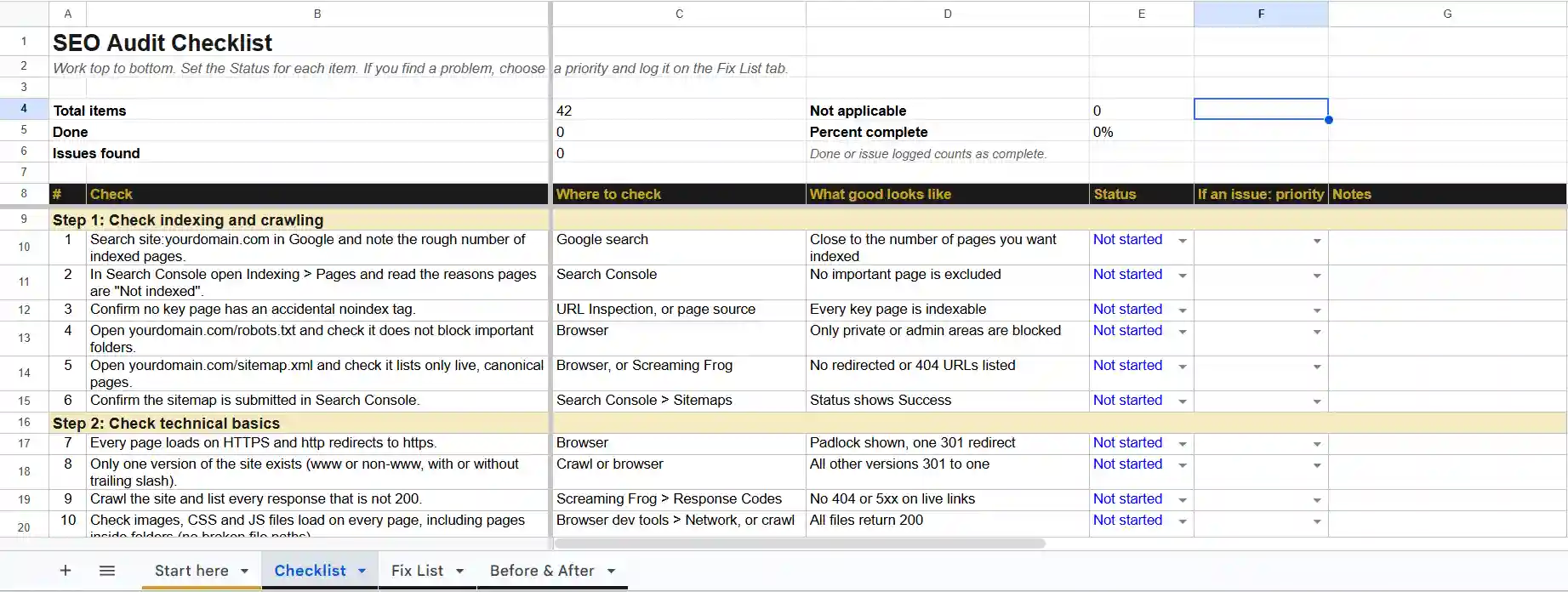
Download the free SEO audit checklist
Want the eight steps as a one-page checklist you can tick off? Download the free copy and keep it next to Search Console while you work.
When to do it yourself and when to get help
Doing it yourself works well for a small site, a new site, or a regular health check. It costs time, not money, and teaches you how your own site works.
It is worth getting a specialist when your site has hundreds of pages, when traffic drops suddenly, when you are about to redesign or move to a new platform, or when the findings need technical fixes you cannot make yourself.
If you would rather have someone run the audit and prioritise the fixes for you, see how I work on my SEO services page, or message me on WhatsApp.
Frequently asked questions
How long does an SEO audit take?
For a small site of 10 to 30 pages, a first self-audit usually takes a few hours with free tools. Larger sites take longer, mostly because there is more to review and fix.
How often should I do an SEO audit?
Check Search Console monthly, run a quick version of this checklist every quarter, and do a full audit every 6 to 12 months or after a redesign.
Can I do an SEO audit for free?
Yes. Search Console, Google Analytics, PageSpeed Insights, the Rich Results Test and the free version of Screaming Frog cover the whole checklist.
Do I need technical skills to audit my own website?
Not for most of it. Steps 1, 3, 4 and 6 need no coding. Steps 2 and 5 can get technical, so note what you find and pass those items to your developer.
What is the difference between an SEO audit and a technical SEO audit?
A technical audit covers how the site is built and crawled (Steps 1, 2 and part of 5). A full SEO audit also covers on-page elements, content and off-page signals.